Four Quick Monday.com Fixes for Marketers That Will Make Your Life Easier
If Monday.com has you in a fit of rage, take some deep breaths and try these quick fixes to make it work better for you.
Clients often come to me because they hate their current project management tool and desperately want to make a switch.
Sometimes, the capabilities of the tool genuinely aren’t fitting your marketing team’s needs.
But other times, some small tweaks to the tool’s settings will take your mindset from “BURN IT ALL DOWN” to “I got this.”
UX is a common complaint I hear about Monday.com. The good news is there are quick, native tweaks you can make to solve some common frustrations.
Issues addressed in this article:
ISSUE #1: Completed tasks cluttering boards
ISSUE #2: “My Work” view shows completed tasks at the top
ISSUE #3: Navigating to a subitem’s parent item in “My Work”
ISSUE #4: Sifting through too many Boards in one Workspace
ISSUE #1: Completed tasks cluttering boards
As a busy marketer, you need to be able to focus on the tasks at hand, not be distracted by work that’s already done.
To hide completed tasks in a board, create a filter for all statuses besides “Done.”
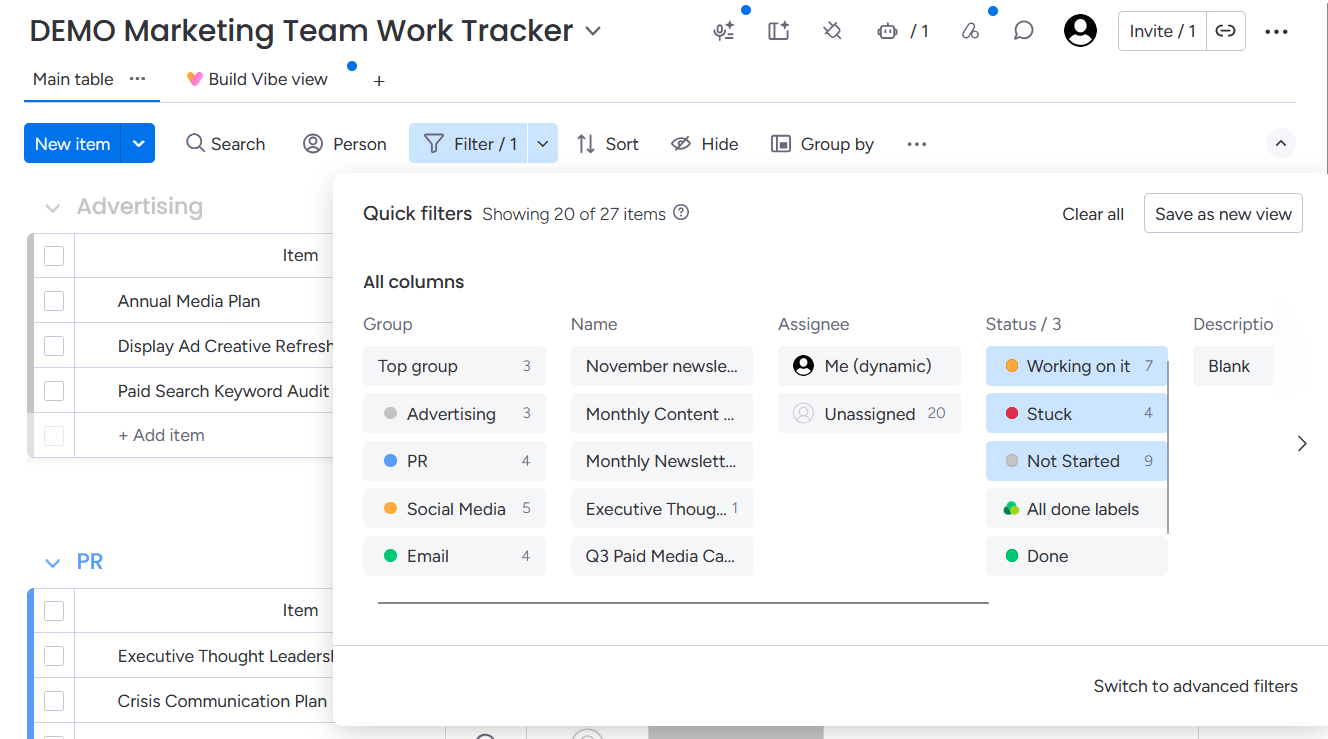
This will temporarily change the view on your board, meaning if you click away from it, it will go back to showing all statuses when you return.
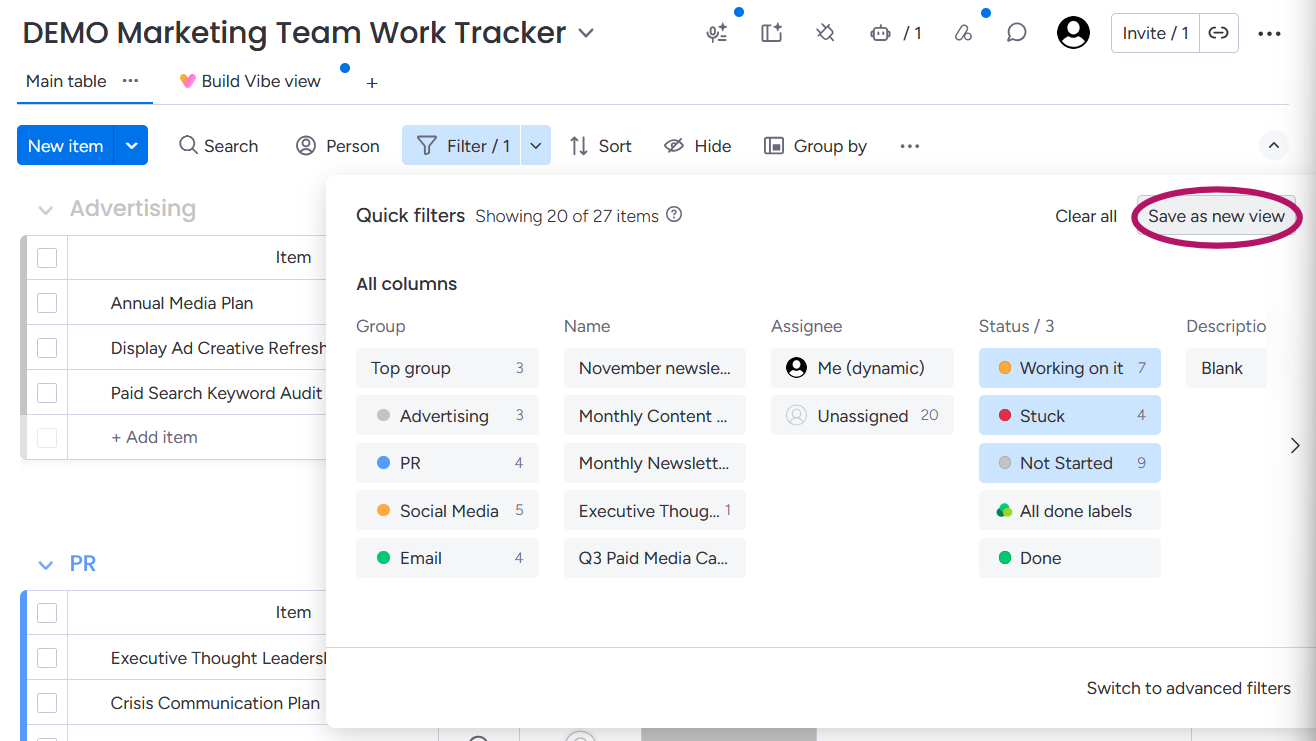
To make this view the default, click the “Save as new view” button.
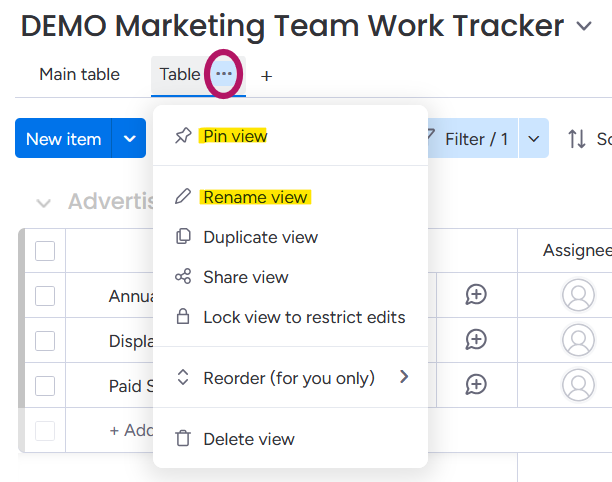
This will create a new tab called “Table.” Hover over it and click the three dots that appear.
From here, you can rename the view/tab and pin it as the default.
Click the three dots on your “Main table” and click “Hide main table” if you want it to go away.
ISSUE #2: “My Work” view shows completed tasks at the top
Why oh why is the default for items marked as “Done” to be grouped at the top of the “My Work” page? Who would ever want this? I can’t answer that, but I can tell you how to fix it.
To hide completed tasks in “My Work,” click Customize and check “Hide done items.”
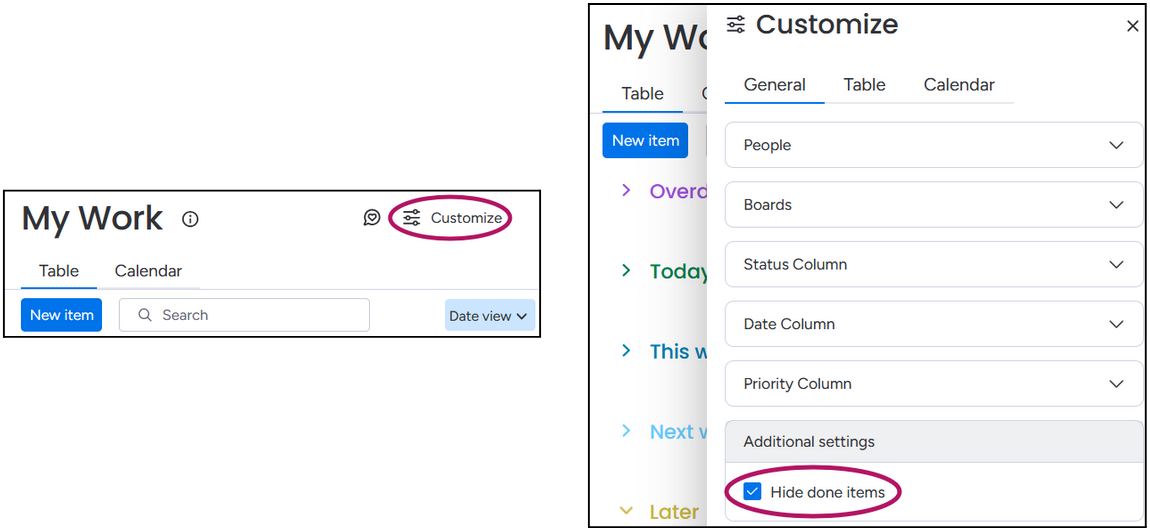
I also recommend changing the default Status view to Date view. This will sort all your tasks into Overdue, Today, This week, Next week, and Later sections.
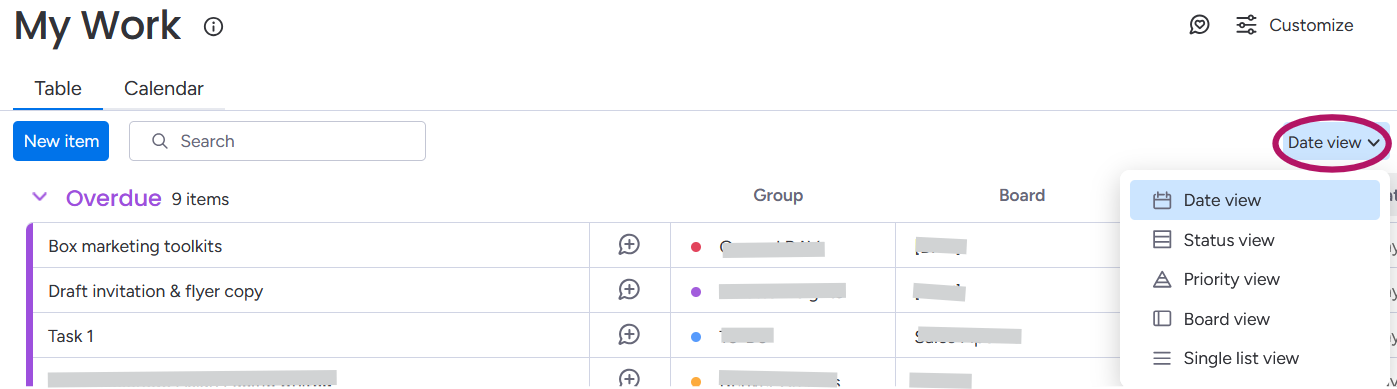
Your “My Work” page will remember these changes, so you don’t have to make them again.
ISSUE #3: Navigating to a subitem’s parent item in “My Work”
Speaking of “My Work,” it might not be immediately apparent what parent item a subitem belongs to. There are two solutions to this problem.
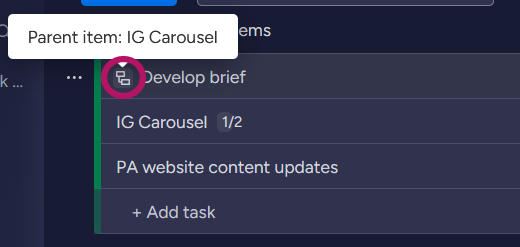
In your “My Work” list, any subitems will have a branching icon to the left of the task’s name. Hover over it to see the parent item’s name at a glance. Click on this icon to open the parent item’s card.
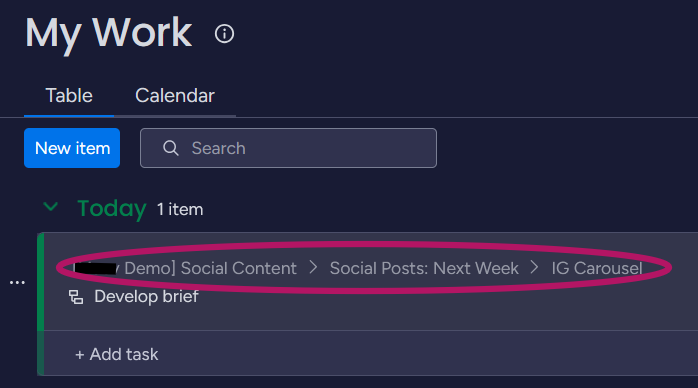
You can also customize your “My Work” table display to “Context view.”
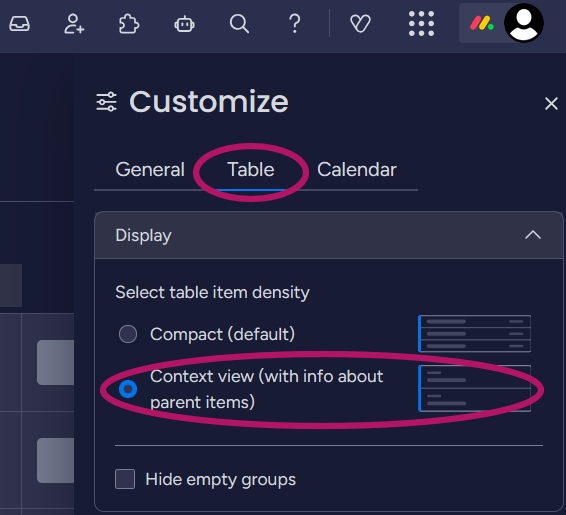
You will now be able to see the board the subitem is associated with, what section it’s in, and the parent item it’s associated with. Click on any of these to jump there.
ISSUE #4: Sifting through too many Boards in one Workspace
If you work for a larger company or team, it can be overwhelming to sift through every other team’s Boards in the left sidebar menu. This may seem small, but any friction or overwhelm can detract from staff’s desire to use the tool. There are two things that can help with this:
Option A: Bookmark the boards you need by adding them to “Favorites”
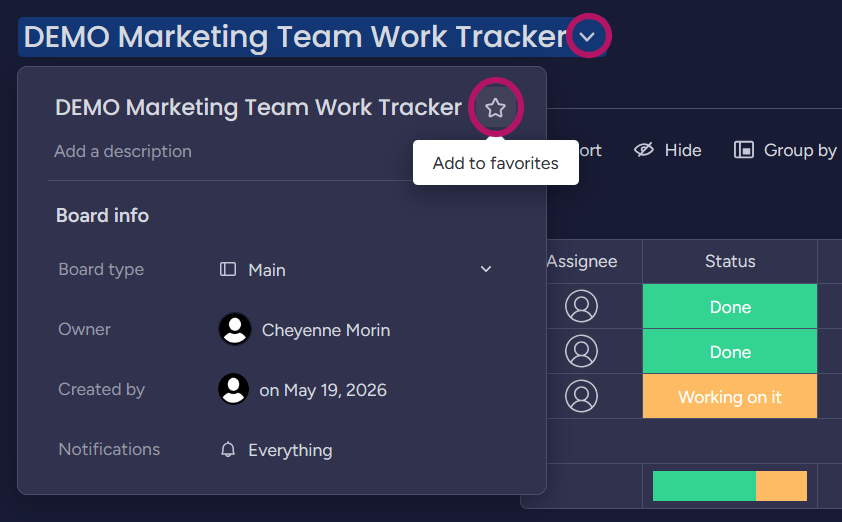
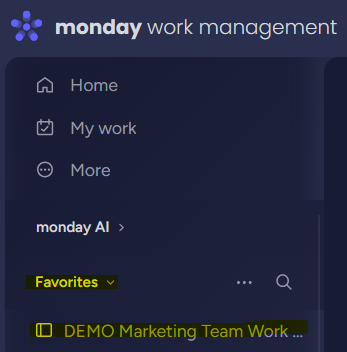
They’ll now show up in your left sidebar menu under “Favorites.”
Option B: You can create separate Workspaces for each work division of your company or team. (ex: Marketing Workspace, Finance Workspace, Supply Chain Workspace, etc.)
Of course, you’ll want to collaborate with your company’s Monday.com administrator to make sure this is done properly and communicated to anyone whose boards are getting moved.
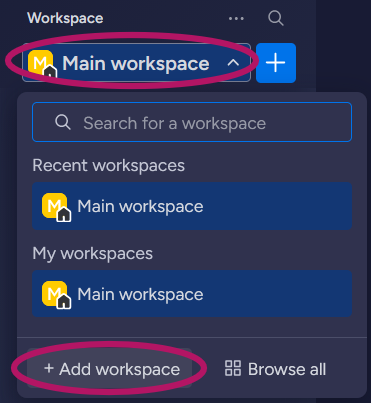
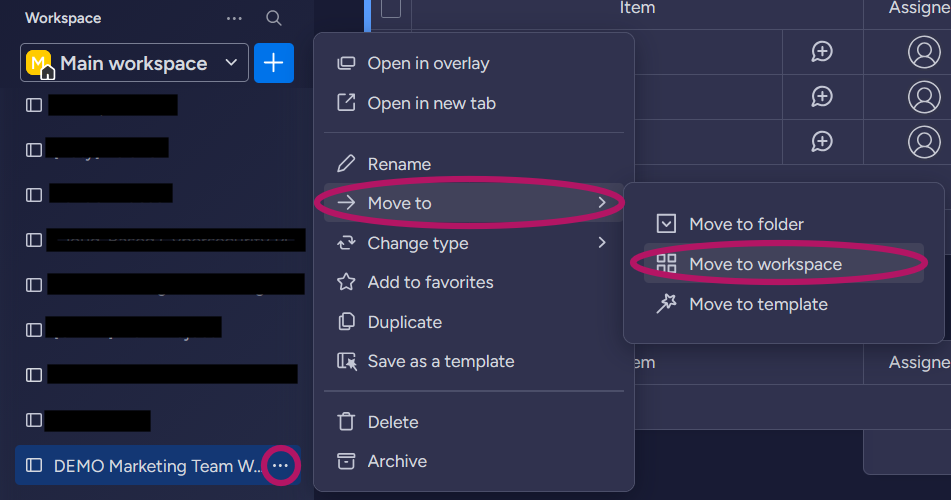
You can move existing Boards to different Workspaces by clicking the three dots next to the Board name in the left sidebar column < Move to < Move to workspace.
In Summary
Small annoyances with Monday.com or any other project management tool can add up to daily frustration that makes you ready to throw in the towel on your system.
But giving up entirely shouldn’t be the answer, especially when project management systems are so critical to marketing teams.
Once you’ve implemented small tweaks like these, reassess how you feel about your tool. If it’s still not meeting your team’s needs, you may need a larger structural overhaul or to switch tools entirely. I offer Rhythm Resets to help diagnose which is right for your marketing team.
Let me know if you give these tips a try by sending me an email. I’d love to hear if they help you out!